Using a Starlink referral link from a QR code
Your camera shows the web address before it opens anything. Read that address first, and a QR code works exactly like a link someone sent you.
Key takeaways
- A QR code holds a web address. If that address is a Starlink referral link, the code rides inside it, the same as a link sent by text.
- Your phone shows the address before opening it. Check that it reads starlink.com and ends with ?referral=RC-…
- If the camera shows a short link or another site instead, you can't see where it goes. Ask the person for the plain link.
- Order in the browser the QR code opened, and look for “Referral Code Applied” on the order page before you pay.
- Don't scan codes you didn't expect: stickers in public places, or QR codes in unexpected emails and texts.
On this page
A QR code is a referral link drawn as a picture. When you scan it, your phone reads the web address hidden inside and offers to open it. If that address is someone’s Starlink referral link, it opens the same page the link would, with the code riding along after ?referral=. Before you tap, read the address your camera shows: it should be on starlink.com and end with ?referral=RC-…. Then order in the browser that opened, and check that the order page says “Referral Code Applied” before you pay. If the preview shows a short link or a site you don’t recognize, don’t open it. Ask for the plain link instead.
What a QR code actually contains
A QR code doesn’t hold a discount, a coupon or an account. It holds text, and for a referral it’s a web address. Anyone can turn any link into a QR code with a free generator, which is why referral QR codes show up on screens, printouts and slides.
That has two consequences:
- It works exactly like the link inside it. If the link is a correct Starlink referral link, the QR code is too. If the link was cut short before it was turned into a picture, the QR code carries the same broken link.
- You can’t read it by looking at it. With a typed link you can at least see the letters. With a QR code you only see the address once your phone decodes it. That preview moment is the whole safety check.
Starlink’s help article on referrals starts every step with opening the referral link you were sent. It doesn’t mention QR codes or a box to type a code into, and neither does the US checkout. So a QR code isn’t a different route. It’s the link route with a camera in the middle.
Scan it in four steps
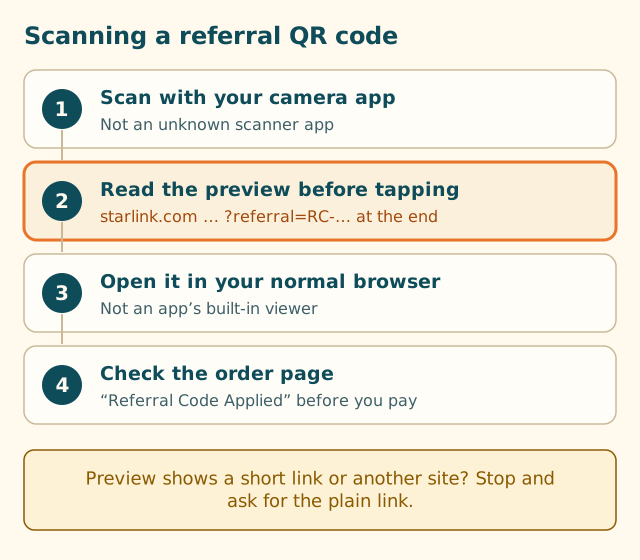
- Scan with your phone’s own camera. Apple’s iPhone guide says to open Camera, position the phone so the QR code appears in the frame, and tap the link that appears at the bottom of the screen. On Android, the built-in camera or Google Lens does the same on most phones. You don’t need a separate scanner app, and some free scanner apps add their own redirect pages.
- Read the preview before tapping. You’re looking for two things. The site name must end in
starlink.com(with or withoutwww.). And the address should end with?referral=followed by a code startingRC-. Some referral links also carry tracking tags such as&utm_source=…after the code. Those are fine. - Open it in your normal browser. That’s usually Safari on iPhone and Chrome on most Android phones. If the scan opens an app’s built-in viewer instead, use its menu to open the page in your browser before you start the order.
- Check the order page. After you enter your service address and pick a plan, the order page should show the referral before you submit. DISHYtech reports that the page shows “Referral Code Applied” and that a banner at the top of starlink.com says you’re using a referral link. We label that as reported until we have our own dated screenshot.
Stay in that browser tab from scan to payment. If you scan on your phone but then switch to a laptop to order, the laptop never saw the link, so the referral isn’t there.
What the preview might show
| Your camera shows | What it means | What to do |
|---|---|---|
starlink.com/residential?referral=RC-… |
A full referral link on Starlink’s site | Open it and carry on |
starlink.com/roam?referral=RC-… |
Same, opening the Roam page | Fine if you want Roam; switch plans with care (see below) |
starlink.com/residential with no ?referral= |
Starlink’s site, but no code in the link | Ask the person to make the QR code again from their full link |
| A short link (a few letters on another domain) | A redirect; the final address is hidden | Ask for the plain link, or check it first with our link and code checker |
Any other site, or a look-alike such as starlink-promo.example |
Not Starlink | Don’t open it. A code only works on starlink.com |
Plain text such as RC-XXXXXX-XXXXX-XX and no address |
Just the code, no link | There’s nowhere to type it. See someone sent just the RC- code |
Our sample code uses X’s because we never print a real code outside the code box. A real one has digit groups, and some Starlink codes also have letters after RC-.
When the scan opens a short link
Some people shorten their link before making the QR code, because shorter links make simpler, easier-to-scan pictures. The problem is that your preview then shows the short link, not the destination. Two things can go wrong. The short link could lead somewhere other than Starlink, and some shortening services or apps drop everything after the ?, which is exactly where the code lives.
If you trust the person, open it and check the address bar on the page that finally loads. It should read starlink.com with ?referral=RC-… still on the end. If it doesn’t, close it. Our guide to shortened referral links covers how to see where one goes without opening it.
Residential or Roam page
A referral link opens whichever page the person chose when they copied it. Both Residential and Roam plans are on Starlink’s referral plan list. If the QR code opens the “wrong” one for you, you can change plans on starlink.com. But Starlink doesn’t publish whether the referral stays attached when you switch pages, so check the order page for the referral line again after switching.
Scanning from a screen
A common case: the referral link is on a computer screen, and you want to order on your phone. Scanning a QR code is a tidy way to move the link across without retyping it.
- Point your phone at the screen, read the preview, and open it on the phone.
- Do the whole order on the phone, in the browser that opened.
- If you’d rather order on the computer, don’t scan at all. Just click the link there.
The reverse also works. If the link is on your phone and you want to order on a laptop, send the full link to yourself by email or a notes app, then open it on the laptop. Our phone copying guide explains how to copy a long link without cutting off the code.
When not to scan
The FTC warned in December 2023 that scammers hide harmful links in QR codes, sometimes by sticking their own code over a real one. Its advice is to inspect the address before opening a QR code you find in an unexpected place, watch for misspellings or a switched letter, and not to scan QR codes in emails or texts you weren’t expecting. All three apply to anything claiming to be a Starlink code.
Be especially wary of:
- Stickers on poles, at gas stations or in parking lots saying “Starlink promo code: scan here”. A real referral comes from a person you know, not from a sticker.
- QR codes in emails or texts about your account, a payment or a “free upgrade”. Starlink’s help center says authentic emails come from the @starlink.com domain without any variations. If you’re unsure, type starlink.com yourself.
- QR codes that open a form asking for your name, address or card “to check if the code applies”. Starlink shows prices and plans for your address on starlink.com itself.
- Any page that asks you to pay for the code. A real referral costs nothing extra. See never pay for a referral code for the warning signs.
If you’ve already opened a suspicious QR code but didn’t type anything, close the page. If you typed card details, call your card company first, then see our guide to look-alike Starlink websites for the rest of the steps.
A worked example
Say a neighbor shows you a QR code on their phone after you ask about their Starlink.
- You open your camera and frame their screen. A preview appears:
starlink.com/residential?referral=RC-…, then a few digit groups. - The site name ends in starlink.com, and the code is on the end. You tap it, and it opens in your browser.
- You enter your own US service address, the one where the dish will be used, and choose a plan.
- Before paying, you look for the referral line on the order page. It’s there, so you pay.
Now suppose the preview had read go-starlinkdeal.example/x7k. That’s a different site, and the address tells you nothing about where it ends up. You’d ask your neighbor to send the plain link by text instead, and use the where-to-enter walkthrough from there.
Making a QR code from your own link
If you’re the one sharing, a few habits stop the code getting lost:
- Copy the full link from your Starlink account and check the end before making the code. It should finish with your
RC-code. - Don’t shorten it first. Most generators handle a full-length link fine, and a full link lets the other person read exactly where it goes.
- Scan your own QR code once and compare the preview with your link before you share it.
- Share it with people you know. This site doesn’t post links in public places, and we suggest you don’t either.
What we don’t know
- Whether a QR code made by any particular generator adds its own redirect page. Some free generators do, and that changes what the preview shows. We haven’t tested specific generators.
- Whether the referral survives if you scan on one device and later sign in to finish the order on another. Starlink doesn’t publish this, so we suggest finishing on the same device and browser.
- Whether Starlink’s app shows a referral QR code. Its help article on using a referral link doesn’t mention one (checked 2026-10-06).
Common mistakes
- Tapping before reading. The preview is the only check you get. Read the site name every time.
- Using a random scanner app. Some insert their own pages or ads. Your camera app is enough.
- Scanning, then ordering on another device. The referral lives in the browser that opened the link.
- Trusting a sticker. A QR code in a public place isn’t a referral from someone you know.
- Assuming the QR code is a discount code. It’s a link. The referral benefit for a qualifying new customer is one free month of service on the eligible plan you choose, and it reaches the order only through the link.
What to do next
Read the preview, open the link, then follow our where-to-enter walkthrough to the order page. If you’re not sure about an address, paste it into the link and code checker first. And if the code isn’t showing once you’re there, our code vs link explainer explains why the link, not the code alone, is what counts.
Questions people ask
Does a Starlink referral code work from a QR code?
A QR code only stores a web address. If that address is the person's Starlink referral link, scanning it opens the same page the link would. What matters is that the address is starlink.com and still ends with the ?referral=RC-… part when it opens.
How do I see where a QR code goes before opening it?
On iPhone, Apple's guide says to open Camera, frame the code, and tap the link that appears at the bottom of the screen. That link preview is your chance to read the address. Most Android cameras and Google Lens show a similar preview before opening.
The QR code opened a short link, not starlink.com. Is that OK?
You can't tell where a short link ends up until it opens, and some short links drop the part after the question mark. If the final page isn't starlink.com with ?referral= in the address, close it and ask the person for their plain link.
Can I scan a QR code on my computer screen with my phone?
Yes, that's a common way to move a link from a computer to a phone. Then finish the order on the phone, in the browser the scan opened, so the referral stays with that browser.
Is it safe to scan a Starlink QR code on a flyer or sticker?
Be careful. The FTC warns that scammers cover real QR codes with their own. If you didn't expect the code, inspect the address before opening it, and don't type anything into a page that isn't starlink.com.
Does Starlink make referral QR codes?
Starlink's help article on using a referral link talks about opening the link you were sent. It doesn't describe a QR code feature, so a referral QR code is something a person made from their own link (checked 2026-10-06).
Related guides
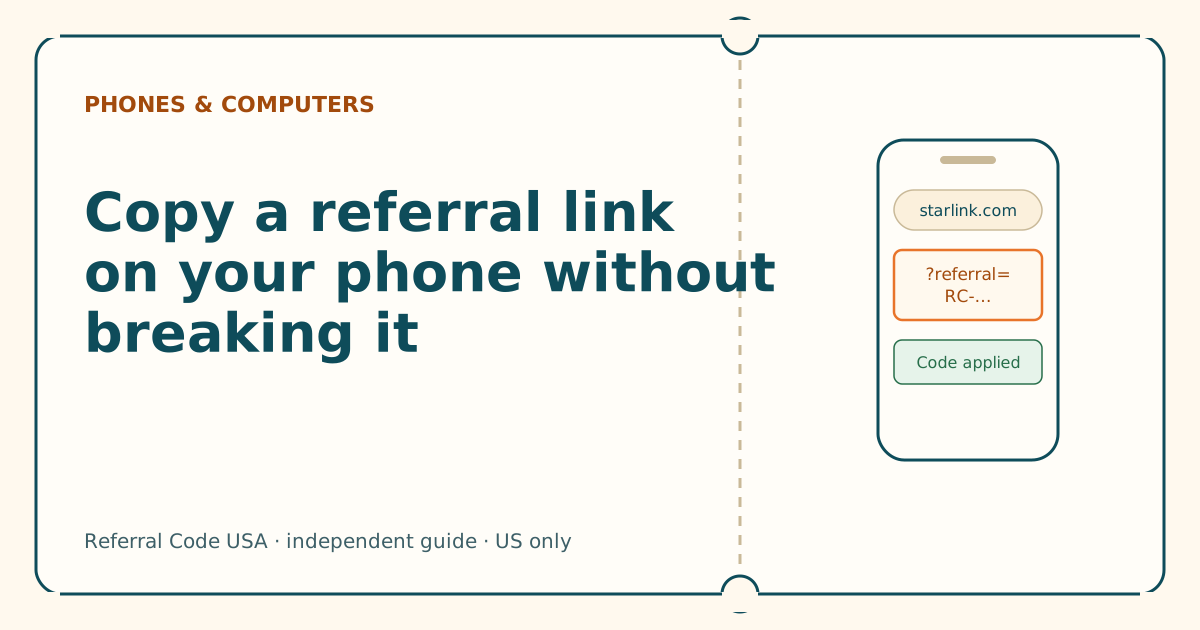
Copy a referral link on your phone without breaking it
Dragging selection handles across a long link is where codes get cut off. Press and hold the link itself instead, then check the end of what you pasted.
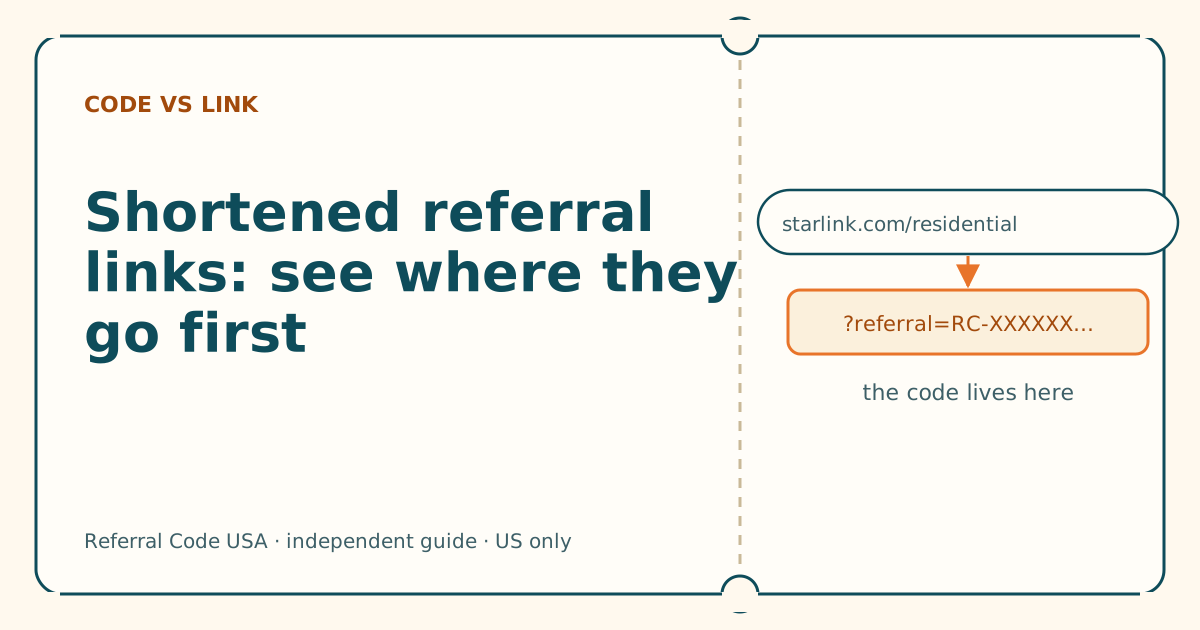
Shortened referral links: see where they go first
A shortened link could be a working referral, a plain starlink.com page or a different website entirely. You can't tell by looking. Here's how to find out without risk.
Look-alike domains: spotting starlink.com imitations
A fake site can copy Starlink's look perfectly. It can't copy the address. Learn to read the address, and the disguise stops working.
Sources
What we read for this article, and when. Prices on this site come from one data file, re-read at least every 30 days.
- How do I use a referral link? (Starlink help center), retrieved
- Referral Program Terms, US (DOC-1882-84808-83), retrieved
- Scan a QR code with your iPhone camera (Apple iPhone User Guide), retrieved
- Scammers hide harmful links in QR codes to steal your information (FTC Consumer Alert, Dec 6, 2023), retrieved
- Phishing or suspicious emails or texts claiming to be from Starlink (Starlink help center), retrieved
- How to Use Starlink's Referral Program (DISHYtech, secondary), retrieved
Spotted something out of date? Report it, and see how we check claims.
Independent · not affiliated with SpaceX. Referral Code USA is an independent site. Some pages may show our own Starlink referral code; if you order with it, we may receive a referral reward from SpaceX. That never changes what an article says, and articles about scams carry no code at all. How we make money.